

¿Cómo puedo utilizar la plantilla de inspección "[NextWave Safety Solutions] En mi proyecto plantilla de inspección de concreto?
Fondo
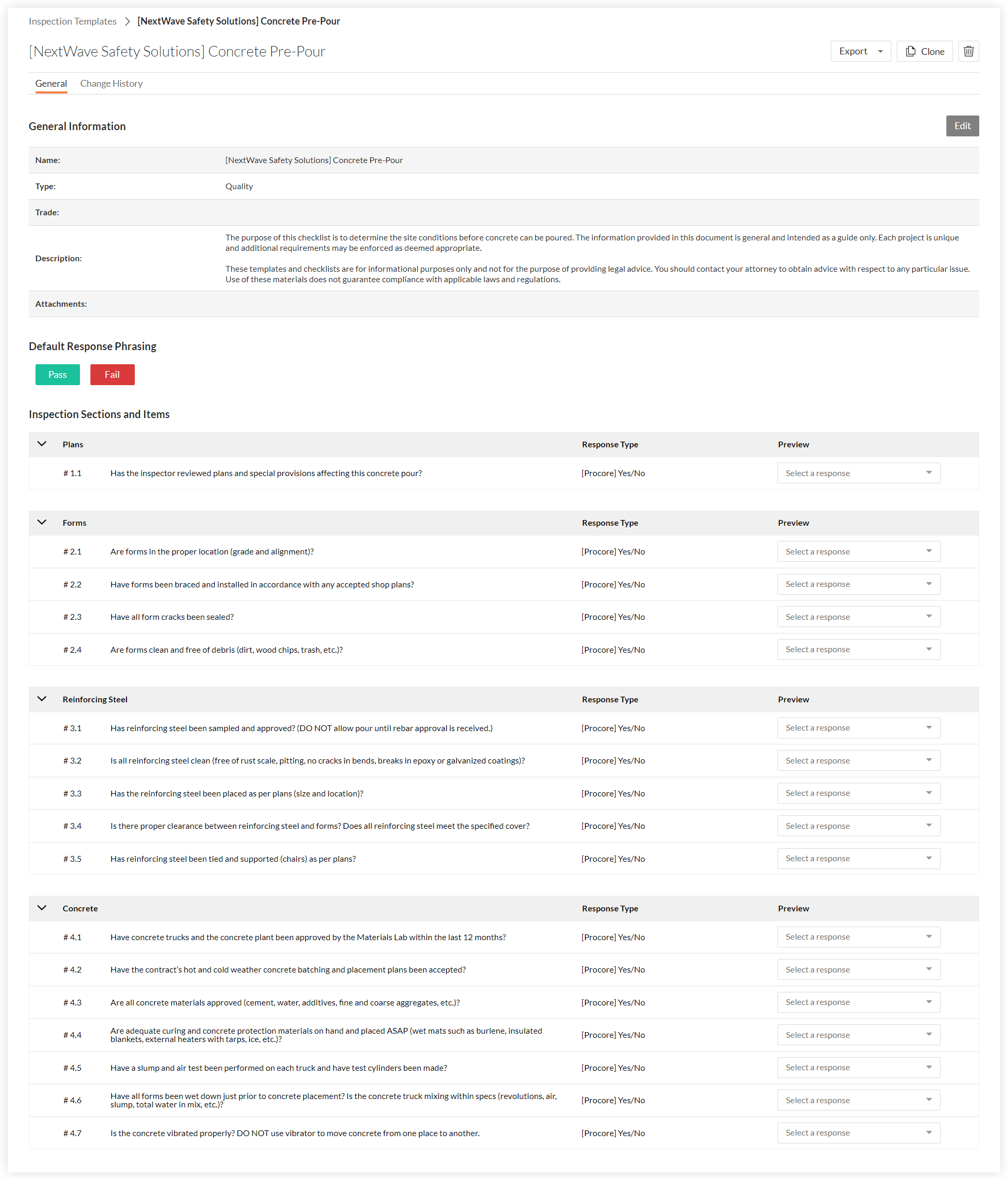
Procore ha agregado una nueva plantilla de inspección llamada "[NextWave Safety Solutions] Pre-vertido de concreto". Esta plantilla de inspección se ha agregado automáticamente a la herramienta Inspecciones a nivel compañía para todas las compañías con la herramienta Inspecciones habilitada. Consulte los pasos a continuación para obtener instrucciones sobre cómo agregar esta plantilla a una o más de las herramientas de Inspecciones de su proyecto.
Le recomendamos que utilice esta lista de verificación para determinar las condiciones del sitio antes de que se pueda verter el concreto. La información proporcionada en esta plantilla es general y solo tiene como guía. Cada proyecto es único y se pueden aplicar requisitos adicionales según se considere apropiado.
Importante
Esta plantilla se proporciona únicamente con fines informativos y no para proporcionar asesoramiento legal. Le recomendamos que comuníquese con su abogado para obtener asesoramiento respecto a cualquier problema en particular.El uso de esta plantilla no garantiza el cumplimiento de las leyes y regulaciones aplicables.Vista previa
Pasos
- Paso 1: (opcional) editar la plantilla de inspección a nivel compañía
- Paso 2: agregar la plantilla de inspección a un proyecto
- Paso 3: (opcional) editar la plantilla de inspección a nivel proyecto
- Paso 4: llevar a cabo la inspección
- Paso 5: cerrar la inspección
Paso 1: (opcional) editar la plantilla de inspección a nivel compañía
Si desea realizar cambios en la plantilla de inspección que solo tendrán impacto en un proyecto en el que se utiliza la plantilla, le recomendamos que edite la plantilla de inspección a nivel compañía después de que la haya agregado a su proyecto.
Consulte Editar una plantilla de inspección a nivel compañía o bien:
Haga clic aquí para ver los pasos.
- Navigate to the Company level Inspections tool.
- Locate the template and click Edit.
- Under General Information, click on any editable field to make your changes.
- Under Inspection Items, click on any editable field to make your changes.
- To delete a template section or item, click the trash bin
 icon at the end of the section or item.
 - To bulk edit your inspection items, mark the checkbox next to the # symbol to select all the sections of your inspection.

- Choose from additional editing options:
Bulk Edit Response Type
- Click Edit Response Type
- Select the response type from the response type menu.
- Click Apply.
Bulk Edit Inspection Requirements
- Click Edit Require Observations On or Edit Require Photos On.
Note: If the requirement is not provided by the user, the inspection response will not be saved.- Status: You can select either a 'Conforming' or 'Deficient' status, or you can select both.
- Responses: You can select either 'Pass', 'Fail', or 'N/A' responses, or you can select a combination of the three. You can also select 'Not Required'.
- Click 'X' to remove any of your response types.
Add Sections and Items
- Click + Add section to add more sections.
- Click + Add item to add more items.
- Click + Quick Add to quickly add multiple section items at one time.
Note: You can reorder individual items within a section of your template by dragging your item with the reorder icon. To reorder an entire section, click the toggle on
  icon next to Reorder Sections and drag the sections of your choice. Turn off Reorder Sections to continue creating your template.
 - Click + Add References to attach files from your computer for additional inspection item details.
- Click Update to save your changes.
Paso 2: agregar la plantilla de inspección a un proyecto
La plantilla de inspección debe agregarse a la herramienta Inspecciones a nivel proyecto para que se pueda utilizar en ese proyecto.
Consulte Agregar plantillas de inspección a nivel compañía a su proyecto o bien
Haga clic aquí para ver los pasos.
- Navigate to the Project level Inspections tool.
- Click the Configure Settings
 icon.
icon.
Note: For more information on configuring your advanced settings, see Configure Advanced Settings: Inspections. - Click the Templates tab.
- Click Import Company Templates.
Note: This button will be disabled if you have not first Created a Company Level Inspection Template. - Mark the checkbox next to one or more company inspection templates to use on this project.
Notes:- Only templates that you haven't added to your project will appear for you to select.
- To narrow your options down, filter templates by Type or Trade by clicking the Add Filter drop-down menu.
- Click Import Templates.
Note: Project templates may be modified here throughout the duration of the project, but changes will only be reflected on project inspections that are created from the modified template.
Paso 3: (opcional) editar la plantilla de inspección a nivel proyecto
Si desea realizar cambios en la plantilla de inspección que solo tendrán impacto en un proyecto en el que se utiliza la plantilla, le recomendamos que edite la plantilla de inspección a nivel proyecto después de que la haya agregado a su proyecto.
Consulte Editar una plantilla de inspección a nivel proyecto O bien
Haga clic aquí para ver los pasos.
- Navigate to the Project level Inspections tool.
- Click the Configure Settings
 icon.
icon. - Click Templates.
- Click Edit next to the inspection template that you want to edit.
Note: An icon indicates a Company level Inspection template has been added to the project.

- Under 'General Information', edit the following fields:
Note: If the template you are editing is a Company level Inspection template, certain fields cannot be edited in the Project level Inspections tool. These fields are indicated by an icon.
- Name : Title your inspection. This will show up on your inspections log page and will help you differentiate between your inspections within your project. This is a required field.
- Type : Choose from the list of inspection types added to the company (e.g. Safety). (Note: If you have not added inspection types to your project, see Configure Advanced Settings: Company Level Inspections. You will need to have 'Admin' level permissions on the Company level Inspections tool.)
- Trade (Optional): Give your inspection a trade (e.g. Electrical, plumbing). (Note: Your company's trade list can be managed at your company level's Admin tab under 'Trade Configuration.)
- Company Description : Company level Inspection templates may include a separate description.
- Description (Optional): Include any relevant details about the inspection.
- Attachments: Attach any relevant files to the templates by clicking Attach Files.
Note: If you try to create an inspection template without a name or with a name that already exists, there will be an error message that details the reason. You can create an inspection with the same name as one in the Recycle Bin, but once you name it, you cannot restore a template in the Recycle Bin without first editing an inspection template to change the name.
- Name
- To edit existing sections and items on the template, click on the field you want to edit.
Note: Existing sections and items cannot be edited on Company level inspection templates in the Project level Inspections tool. - To delete a template section or item, click the trash bin icon to the right of the item heading.
- To bulk edit your inspection items, mark the checkbox next to the # symbol to select all the sections of your inspection.

- Choose from additional editing options:
Bulk Edit Response Type
- Click Edit Response Type
- Select the response type from the response type menu.
- Click Apply.
Bulk Edit Inspection Requirements
- Click Edit Require Observations On or Edit Require Photos On.
Note: If the requirement is not provided by the user, the inspection response will not be saved.- Status: You can select either a 'Conforming' or 'Deficient' status, or you can select both.
- Responses: You can select either 'Pass', 'Fail', or 'N/A' responses, or you can select a combination of the three. You can also select 'Not Required'.
- Click 'X' to remove any of your response types.
Add Sections and Items
- Click + Add section to add more sections.
- Click + Add item to add more items.
- Click + Quick Add to quickly add multiple section items at one time.
Note: You can reorder individual items within a section of your template by dragging your item with the reorder icon. To reorder an entire section, click the toggle on icon next to Reorder Sections and drag the sections of your choice. Turn off Reorder Sections to continue creating your template. - Click + Add References to attach files from your computer for additional inspection item details.
- Click Update to save your changes.
Paso 4: llevar a cabo la inspección
Recomendación
Las inspecciones también se pueden realizar a través de las aplicaciones móviles iOS y Android de Procore. Consulte Realizar una inspección (iOS) y Realizar una inspección (Android).Consulte Realizar una inspección o bien:
Haga clic aquí para ver los pasos.
Paso 5: cerrar la inspección
Una vez realizada la inspección, el paso final es cerrarla.
Consulte Cerrar una inspección o bien:
Haga clic aquí para ver los pasos.
- Navigate to the Project level Inspections tool.
- Click View next to the inspection you want to close.
- Click the vertical ellipsis
 and select Close.
 - Click Confirm.
 .
.