

Revisar una hoja de tiempo (Android)
Contexto
Una vez que cree una hoja de tiempo, puede obtener las firmas de sus empleados de campo. (Véase Firmar una hoja de tiempo (Android) y Firmar una hoja de tiempo (iOS).) A continuación, puede revisar las hojas de tiempo para comprobar su precisión.
Ejemplo
Debido a que cada compañía de construcción es diferente, los miembros del equipo que elija para llevar a cabo su proceso de registro de horas pueden diferir de los roles y consideraciones de este ejemplo:
-
Capataces, Superintendentes y otros Supervisores. Estos son los miembros del equipo que crearán entradas de tarjetas horarias y hojas de tiempo en un proyecto. Como mínimo, debe proporcionar a estos miembros del equipo permisos de nivel "Solo lectura" o "Estándar" en la herramienta Hojas de tiempo a nivel proyecto y el permiso granular "Revisar y editar hojas de tiempo" en una plantilla de permisos del proyecto. Esto permite a estos usuarios crear nuevas hojas de tiempo con el estatus "Pendiente" y cambiar el estatus de una hoja de tiempo a "Revisado" en la herramienta Hojas de tiempo a nivel proyecto. También pueden cambiar el estatus de "Pendiente" a "Revisado" en las hojas de tiempo del proyecto que tienen permiso para ver con la herramienta Hojas de tiempo a nivel de compañía.
-
Gerentes de Proyecto y otros Administradores o Ejecutivos. Estos son los miembros del equipo que aprobarán las hojas de tiempo "Revisadas" antes de entregarlas a su equipo de contabilidad/nómina para su procesamiento. Como mínimo, debe proporcionar a estos miembros del equipo "Administrador" en la herramienta Hojas de tiempo a nivel proyecto. Sin embargo, si son responsables de monitorear el cronometraje en varios proyectos, es posible que también desee otorgarles permisos de nivel "Administrador" en la herramienta Hojas de tiempo a nivel compañía.
-
Contabilidad, Nómina y otros Administradores o Ejecutivos. Estos son los miembros del equipo que marcarán las hojas de tiempo como "Completadas". Esta capacidad solo está disponible en la herramienta Hojas de tiempo a nivel compañía, por lo que debe asignar a estos usuarios permisos de nivel "Administrador" tanto en la herramienta Hojas de tiempo a nivel de proyecto. Esto permite a los usuarios acceder a la herramienta Hojas de tiempo a nivel compañía. También permite a los usuarios ver los datos del proyecto en la herramienta a nivel compañía.
Aspectos para tener en cuenta
-
Permisos de usuario requeridos
Recomendación
Puede editar una entrada de tarjeta horaria si es necesario.
Requisitos previos
-
Cree una hoja de tiempo de una de las siguientes maneras:
Pasos
-
Revisar una entrada de tarjeta horaria individual
-
Revisar una hoja de tiempo
Revisar una entrada de tarjeta horaria individual
-
Navegue hasta la herramienta Hojas de tiempo del proyecto en su dispositivo móvil Android.
-
Navegue hasta la entrada de la tarjeta horaria que desea revisar.
-
Toque la entrada de tarjeta horaria y revísela.
-
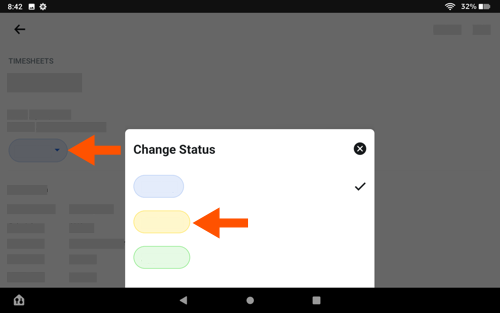
Toque el estado y toque Revisado.
-
Repita los pasos anteriores para cada entrada de tarjeta horaria en la hoja de tiempo hasta que apruebe todas las entradas en la hoja de tiempo.
-
Continúe con Revisar una hoja de tiempo a continuación.
Revisar una hoja de tiempo
-
Navegue hasta la herramienta Hojas de tiempo del proyecto en su dispositivo móvil Android.
-
Toque la hoja de tiempo para revisar.
-
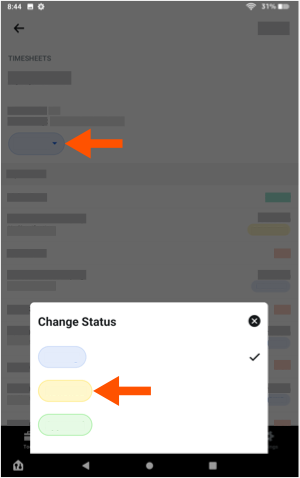
Toque el estado y toque Revisado.
-
Repita los pasos anteriores para cada hoja de tiempo que desee revisar.